


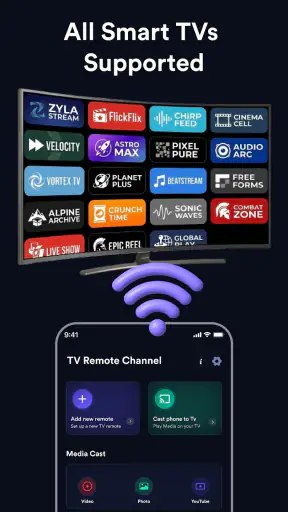
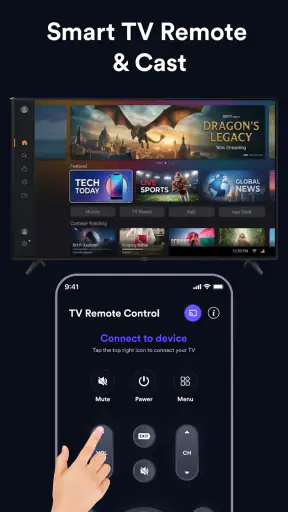
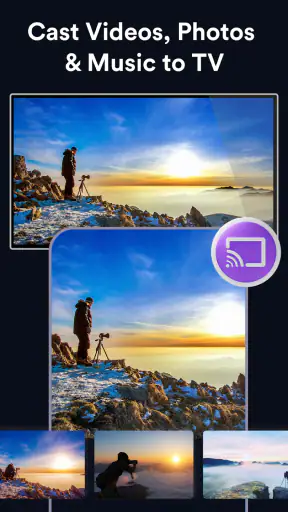
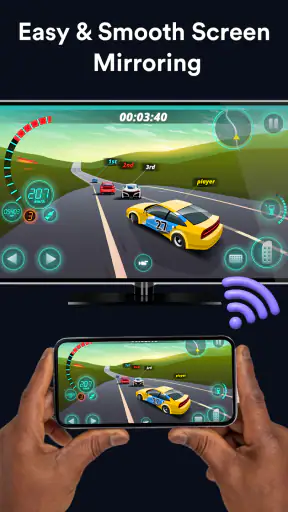
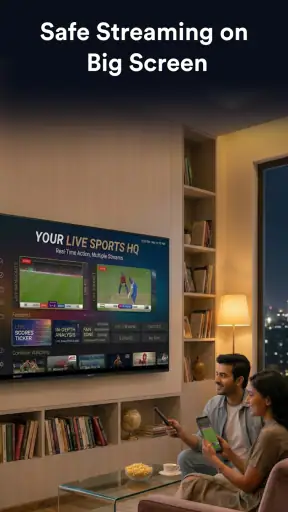
When I try a casting app, I am not only checking whether a video appears on the television. I also pay attention to how much control the app gives me before I connect a device, whether the important choices are understandable, and whether the experience feels comfortable for everyday use. TV Cast & Mirroring: All TV is aimed at that simple job: moving videos, photos, or a phone screen to a Smart TV while also offering remote-control and casting functions.
That makes it a practical kind of video player and editing utility, although I would describe it more accurately as a bridge between a mobile device and a larger screen. It is free, suitable for Everyone, and developed by Jakka Apps. The current version is 1.1, and it runs on Android 8.0 or later. Those details matter because this is the sort of app people often install quickly when they want to show something on a television, then decide whether to keep it based on the first connection attempt.
My overall impression is cautious but useful: the app is appealing when I want a straightforward way to cast personal media or mirror a phone, yet I would not treat it as a universal replacement for every television maker’s own app. Its value depends heavily on the TV, the home network, and how much control I want over permissions and connected devices.
What the app is really useful for
A simple route from phone to television
The most obvious use is sharing content that is already on my phone. A photo album, a locally stored video, or the phone display itself can become easier to view when shown on a television. This is especially handy when several people are watching together and passing a phone around would be awkward.
A realistic example is a family gathering where someone has taken a group video. Instead of asking everyone to lean over a small screen, I can use the casting workflow to put it on the TV. The same approach works for showing travel photos, checking a recording with a larger view, or letting a friend see an app demonstration without crowding around the handset.
The screen-mirroring side is different from ordinary media casting. Casting a video may leave the phone available for other tasks, while mirroring shows the phone’s current display. That distinction is important. I would choose mirroring for a live demonstration or a photo walkthrough, but I would prefer direct casting for longer viewing because notifications, screen changes, and battery use can become distracting when the entire display is being shared.
Why the remote-control element matters
The remote-control function gives the app a more practical role than a simple “send to TV” button. When I am already using the phone to choose content, having playback-related control in the same general workflow can reduce the need to switch between the television remote and the mobile device.
Still, I would keep expectations realistic. A phone-based remote is most useful when I am already holding the phone. It is not automatically a full substitute for a physical remote, particularly when I need fast access to television menus, input selection, or settings outside the casting session. The best fit is casual viewing, not replacing every control in the living room.
Connection habits that prevent frustration
Before I start casting, I make sure the phone and television are connected to the same home network. That is a small step, but it is one of the most common reasons a casting app appears not to work. I also check that the TV is awake and ready to accept a connection rather than sitting in a deep standby state.
If the television is not discovered immediately, I avoid repeatedly tapping connect. I first confirm the network, close and reopen the casting screen, and check whether another household member is already using the TV. This method is less exciting than blaming the app, but it separates a network problem from an app problem and saves time.
For mirroring, I would also put the phone on a stable surface when possible. Small movements are visible on a large screen, and the phone’s orientation can affect how comfortable the result is to watch. These are simple workflow details, but they make the difference between a useful family-sharing tool and a frustrating demonstration.
How it compares with the usual alternatives
The main alternatives are built-in casting tools, television-brand applications, and dedicated services inside individual video platforms. Those options may be better when I only watch supported online content or when I want the tightest possible integration with a particular TV brand.
TV Cast & Mirroring: All TV has a broader everyday appeal because it brings personal photos, local videos, screen mirroring, and remote-style interaction into one app. That convenience is its strongest argument. The trade-off is that a general-purpose app may not feel as deeply integrated as the TV maker’s own software, and compatibility can vary more from one television setup to another.
I would choose the manufacturer’s app when I need brand-specific settings or a dependable television-management experience. I would choose a platform’s built-in cast button when I am watching content from that platform and do not need to share the whole screen. I would consider this app when my goal is wider personal-media sharing and I want one mobile starting point rather than several separate tools.
Trust begins before the first cast
Casting and mirroring are trust-sensitive actions because the result leaves the phone and appears on a nearby screen. I therefore treat the device-selection step as important, not as a minor formality. Before confirming a connection, I want to know which television I am selecting and whether it is the one I actually intend to use.
This is particularly relevant in apartments, shared homes, offices, hotels, or any place where several compatible screens may be visible. A rushed tap can send a private photo or message preview to the wrong display. My practical rule is to pause at the device list, identify the TV by its visible name or location, and only then start sharing.
I also avoid mirroring sensitive screens. Even when I only intend to show a photo, a notification can appear while the phone display is being shared. Turning on a device-level notification setting or using a less sensitive profile before mirroring is a sensible precaution. This is not a special claim about the app; it is a responsible way to use any screen-sharing tool.
Keeping user choices visible
A good casting session should leave me in control of when sharing begins and when it ends. I prefer starting a session deliberately rather than allowing a television to become an accidental destination. Once I am finished, I disconnect from inside the app and check the TV screen before putting the phone away.
The same habit helps when several people use one phone. I do not assume that a previous session is harmlessly finished just because I stopped watching. I look for the active connection state, end it explicitly, and then return to ordinary phone use. That extra moment is worthwhile when the phone contains personal photos, work material, or private conversations.
I also pay attention to requests shown during setup. If the app asks for access that is relevant to selecting photos, videos, or nearby casting devices, I consider the request in context. I avoid granting broad access automatically, and I revisit system permissions later if I no longer use a feature. Because permission screens and operating-system behavior can change, I rely on what is visibly presented on my own device rather than assuming every installation behaves identically.
Data-sensitive moments in daily use
The most sensitive point is not necessarily watching a public video. It is choosing personal media. Photo libraries can contain documents, screenshots, family images, and location-related memories, so I select individual items carefully when the system offers that level of choice. I would not casually open an entire library for a one-time demonstration if a narrower selection is available.
Mirroring deserves even more care because it can expose anything that appears on the phone. I close private apps first, dismiss message previews, and avoid opening password managers, banking apps, or account settings while the session is active. If I need to explain something from a private screen, I would rather prepare a screenshot or a separate demonstration than mirror the live interface.
Network context matters too. I am more comfortable casting at home than on an unfamiliar public network. In a hotel or shared workspace, I first consider who else might be able to see the television or appear as a possible device. I would use the app for a controlled presentation, but I would avoid sharing private content simply because a nearby display is available.
What the public signals suggest, and what they do not prove
The app has passed one million installs and holds a 3.8 average from around 1.4 thousand ratings. That tells me it has attracted meaningful interest, but it does not guarantee that it will discover my particular television or behave identically across every network. Casting reliability is unusually dependent on the devices involved, so I treat popularity as context rather than proof of compatibility.
The app has a Everyone content rating, which makes it approachable for households, but that rating is about content suitability rather than privacy or connection quality. I would still supervise how children use screen mirroring, especially if they can select personal photos or connect to a shared television.
Its free price lowers the barrier to testing it. I can try the basic workflow without committing money first, which is useful because the real question is whether my phone and TV cooperate smoothly. Free does not remove the need to review visible permission prompts or to disconnect carefully after use.
Who will appreciate it most
I think this app is a good match for someone who regularly wants to show personal media on a larger screen and does not want separate tools for photos, videos, mirroring, and remote-style control. It is also useful for households where one person usually manages the TV from a phone and wants a single, familiar starting point.
It suits occasional users as well, provided they are willing to perform the basic network and device checks. The app can be valuable for a presentation, a family event, or a quick demonstration when a cable is inconvenient and the television is already available.
I would be more hesitant to recommend it to someone who only watches content from one streaming service. In that case, the service’s own casting option may be simpler and may keep the phone from mirroring unnecessary interface elements. I would also steer a person toward a television-brand solution if they need advanced TV settings, firmware-related functions, or guaranteed control over brand-specific features.
Limitations I would plan around
The largest practical limitation is that the app cannot remove the differences between television models, network configurations, and operating systems. A general casting tool can make the process easier, but it cannot ensure that every Smart TV exposes the same capabilities. If discovery fails repeatedly on a well-configured network, I would test the TV’s built-in option before spending a long time troubleshooting.
Mirroring can also be less comfortable than direct casting for extended viewing. The phone stays involved in the session, the display may show interruptions, and the experience depends on the wireless connection remaining steady. For a short demonstration, that is acceptable. For a full film or long presentation, a direct TV app, wired connection, or native casting feature may be the better choice.
The remote-control idea has a similar boundary. It is convenient within the casting workflow, but I would not assume it provides every control available on the physical remote. If I need to change inputs, adjust detailed television settings, or recover from a connection issue, I keep the original remote nearby.
My practical setup routine
My preferred routine is deliberately short. I connect both devices to the same network, open the app, identify the intended television, and begin with a harmless photo or short clip. This test confirms discovery and basic playback before I share anything private or start a longer session.
For a group setting, I prepare the content first and avoid browsing through unrelated photos while the screen is already visible. I use casting rather than full mirroring when I only need to show a selected video, and I reserve mirroring for situations where the audience needs to see the phone interface itself.
At the end, I stop playback, disconnect, and verify that the TV is no longer showing the phone. If I granted temporary access to media, I review the phone’s permission settings afterward. This routine is not complicated, but it gives me more control than treating casting as a single tap with no consequences.
Version and installation considerations
The current release is version 1.1, and the minimum requirement is Android 8.0. That makes the app accessible to many older Android phones, although the age of the phone can still affect performance, battery life, and the smoothness of mirroring. A device meeting the minimum system requirement is not automatically ideal for long screen-sharing sessions.
Since it is free, I would install it as a test rather than as an irreversible commitment. I would check whether the television appears, try one non-sensitive file, and decide from that short experiment. If the app does not fit my TV or network, I would remove it and return to the built-in casting route rather than forcing an unreliable setup.
My cautious verdict
TV Cast & Mirroring: All TV is worth trying when I want a flexible way to move personal videos, photos, or a phone display onto a Smart TV. Its combination of casting, mirroring, and remote-oriented control gives it a broader everyday role than a single-service cast button, and the free installation makes testing straightforward.
My recommendation comes with clear boundaries. I would use it for deliberate, low-friction sharing, but I would verify the target television, think carefully before granting access to personal media, and disconnect explicitly after every session. For sensitive content, I would choose the narrowest sharing method available and avoid live mirroring whenever notifications or private screens could appear.
If your main need is occasional family sharing and your TV is discovered reliably, this app can be a convenient addition. If you need deep brand integration, long-form viewing stability, or the simplest possible route from one streaming service to the TV, a native alternative may serve you better. In my view, the right reason to install it is not the promise of universal casting; it is the practical chance to test whether one controlled mobile workflow fits your particular home.


